.png?width=300&height=74&name=XALTER_Logotype_RGB_BLUE%20(1).png)
In school or corporate environments, Wi-Fi is often the biggest hurdle for VR deployment. Wi-Fi Profiles allow you to bypass manual password entry by pushing credentials directly to your fleet.
🔐 Bypass Security: Pre-configure gated or enterprise (802.1X) networks.
🔄 Remote Updates: Update passwords globally from the dashboard.
✨ Zero-Touch: Headsets connect automatically upon power-on.
01. Create the Wi-Fi Profile
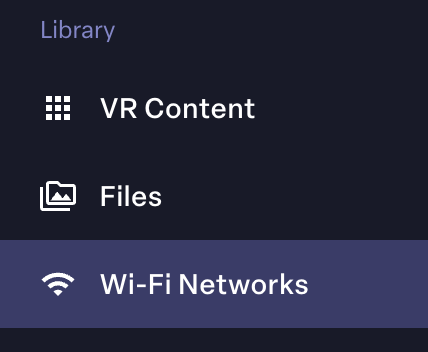
- Log in to the ManageXR Console and navigate to the Wi-Fi Networks tab.
- Click the + Add Wi-Fi Network button.

- Enter your SSID (Network Name) and select the Security Type.
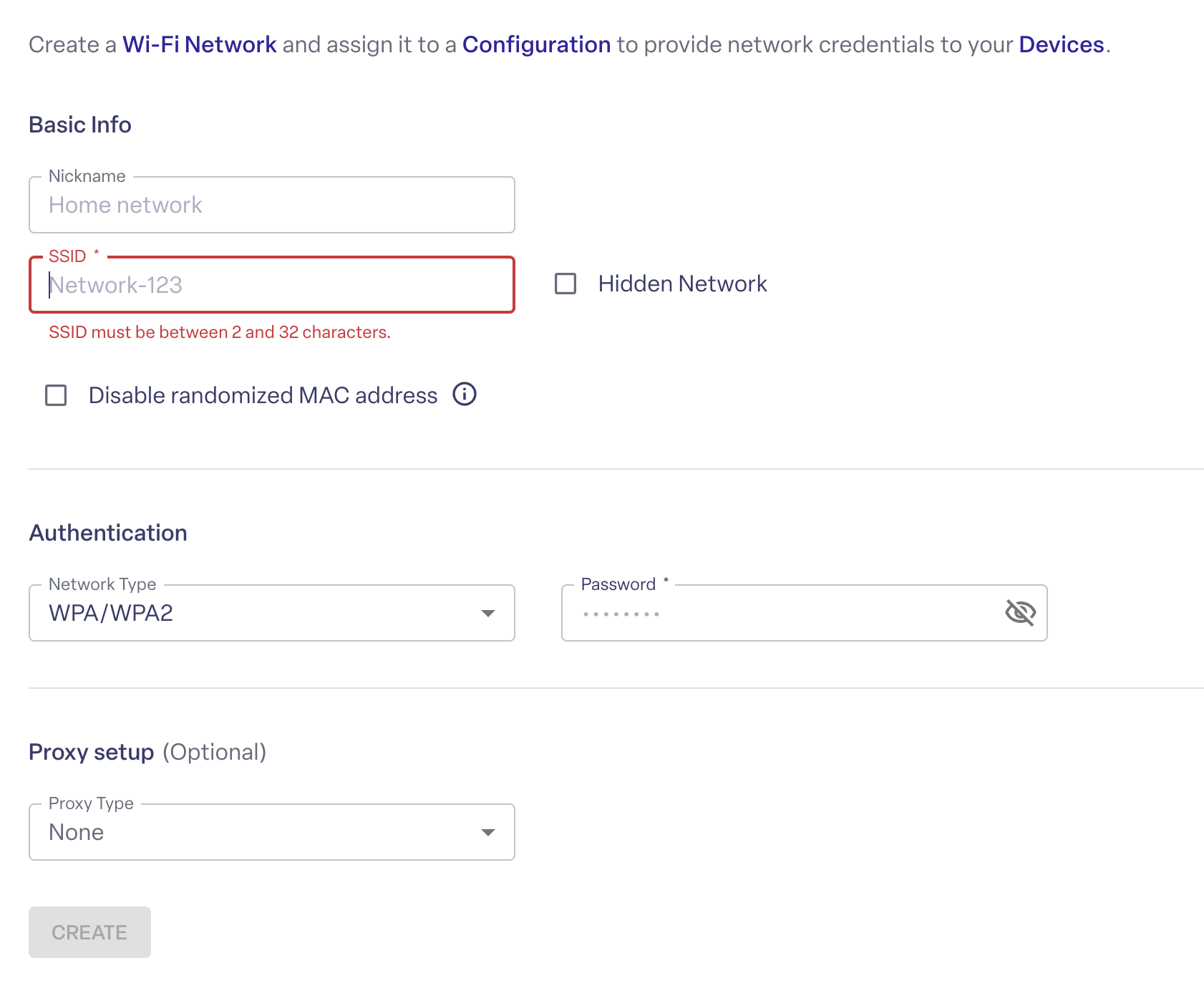
- Enter credentials and click Save.
02. Apply the Profile to a Configuration
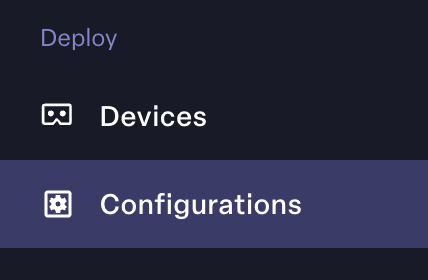
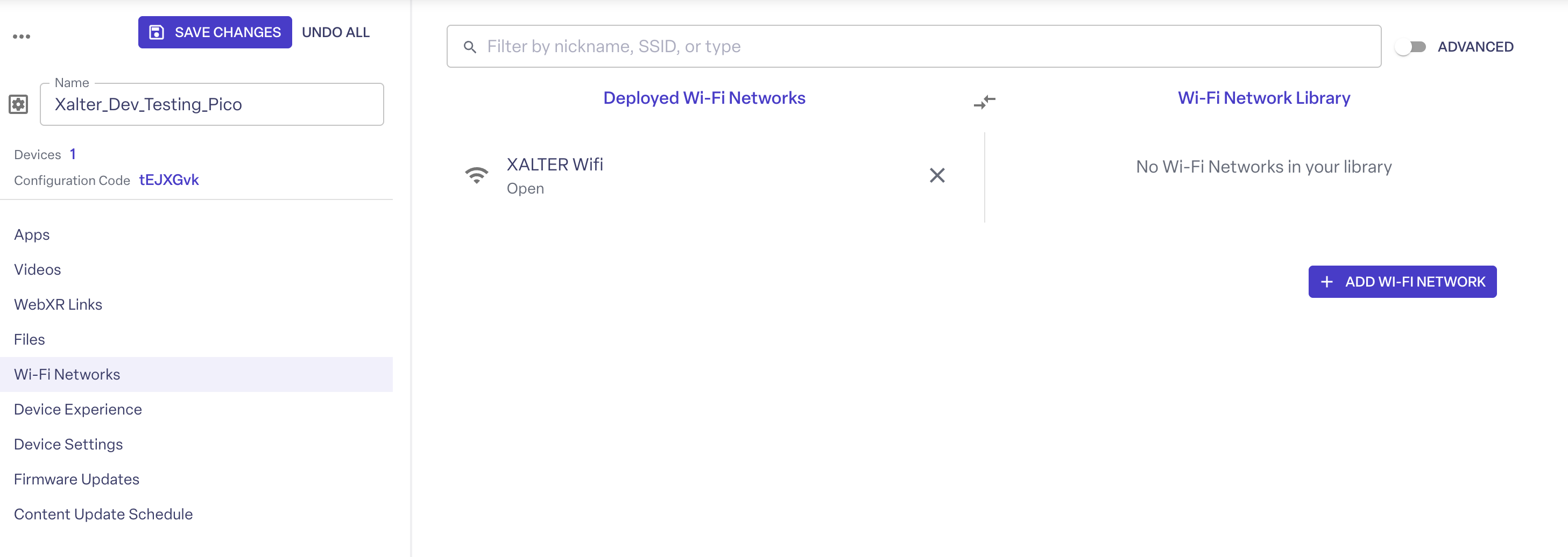
- Go to the Configurations tab and select the profile used by your headsets.
- Scroll down to Wi-Fi Networks, select your new profile, and click Deploy.
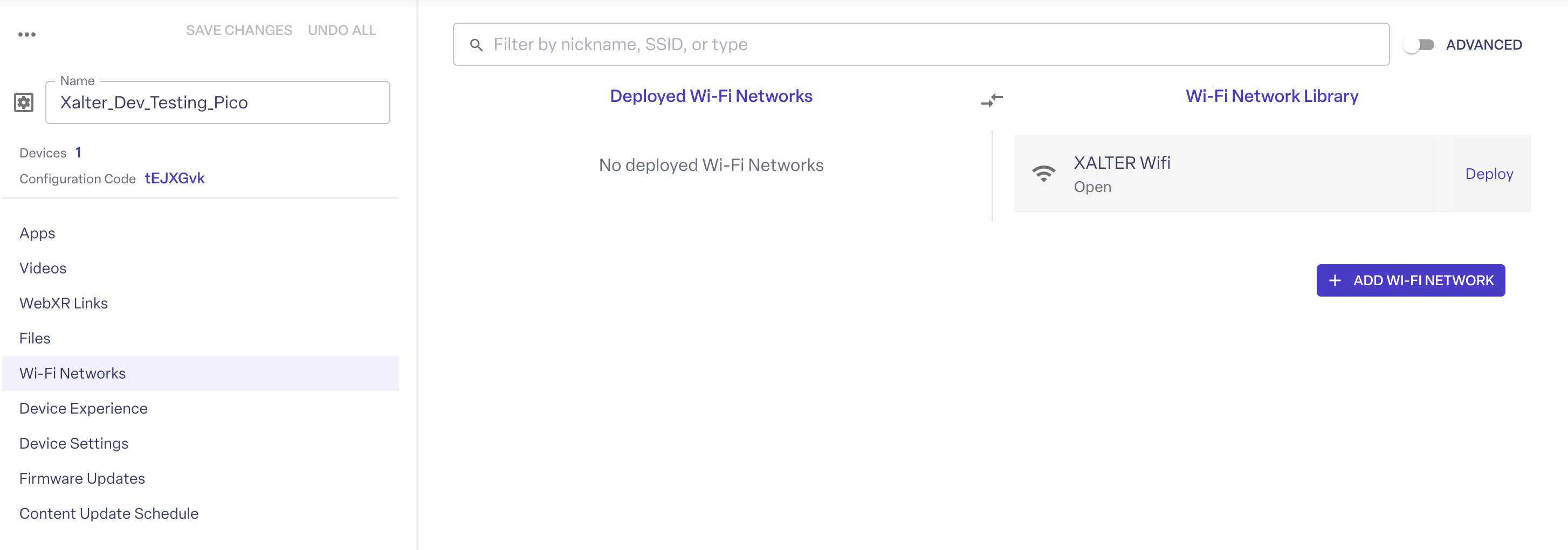
- Click Save Changes at the top of the page to queue the update.
03. Hidden Networks & Certificates
👻 Hidden SSIDs
Ensure you check the "Hidden Network" box in the profile settings so the headset knows to scan for it.
Ensure you check the "Hidden Network" box in the profile settings so the headset knows to scan for it.
📜 Certificates
Upload
Upload
.cer or
.pem files directly into the ManageXR Wi-Fi settings for WPA Enterprise security.
04. Troubleshooting
- Not Connecting? SSIDs are case-sensitive. Verify the name exactly matches your router.
- Signal Issues: Check the Device List in ManageXR to view real-time signal strength for any headset.